
Review & accuracy
How to review AI product photos before you publish
Check labels, shape, colour and shadows in AI product photos. Follow a practical review routine before approving images for your store.
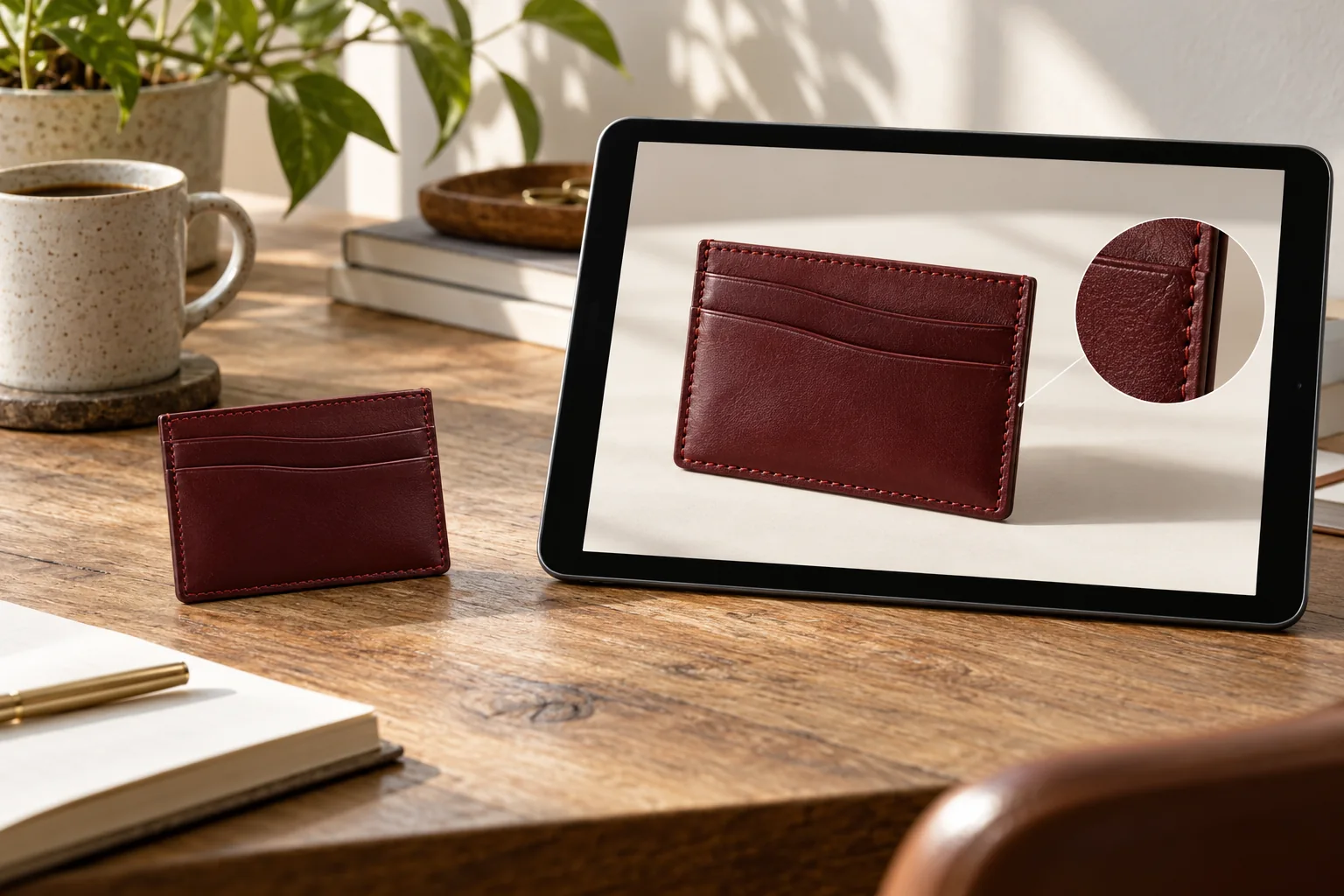
The first thing you notice in an AI product image is often the atmosphere. The background looks polished, the light feels pleasant and the composition is ready for a campaign. Before you download it for your store, give the product itself a separate review.
The most useful question is not just whether the image looks good. It is whether it represents the item you actually sell, in the place where you intend to use the photograph.
Compare the original and result side by side
Start at a comfortable viewing size to check the overall shape. Then inspect the full-size image. Keep the original close by so you are comparing visible facts rather than relying on memory. On a phone, zoom into the important details before approving the result.
Follow the outline around the whole product. Look at handles, straps, feet, lids and any openings. Count repeated parts, such as buttons or chain links where they are clearly visible in the reference. A small extra piece can matter more than a beautifully rendered background.
Check four areas before approving
- Labels: inspect brand names, spelling, symbols and visible quantities. Text that resembles the original is not necessarily correct.
- Shape: compare proportions, closures, seams and included components.
- Colour: check the product against the reference and the real item. Do not mistake a colour experiment for a stock variant.
- Grounding: inspect contact shadows, edges, reflections and the surface beneath the product.
Reflective, transparent and finely patterned products deserve extra time. A glass body may retain traces of the original background. A fabric texture may become smoother than the real material. Check areas that are easy to overlook at thumbnail size.
Separate approval from the next attempt
If a result needs work, save a short note that describes the issue. “The lower label has changed” gives you a clearer next step than “Something feels wrong.” Keep rejected or experimental images separate from assets you have approved for customers.
In BestImage, the saved review lets you record your decision and product checks. Approval is your assessment, not an automatic authenticity certificate. If you add an image description, check that text against the specific finished image before marking it reviewed too.
Before making another generation, decide whether the problem comes from the reference or the direction. If the original label is blurred, a sharper photograph may help more than another attempt. If the product is clear but the scene is too busy, simplify the brief. Review the displayed cost before starting a new attempt.
Review the delivered file as well
Open the exported image and check its dimensions, padding and sharpness. Then inspect it in the actual storefront layout. A detail that was readable on the canvas may be too small in a product grid, and a banner crop may hide an important edge.
Does a completed generation mean it is ready to publish? No. Completion confirms that a file was delivered. Product accuracy, useful composition and suitability for your listing still need human review.
Read what makes lighting and shadows believable and our storefront delivery checklist. You can compare and review saved results in the Studio.
PRACTICAL WORKFLOW NOTE · 12 NOVEMBER 2026
A label changed. What should you do next?
- Open Original and Result, then Compare. Inspect the complete label at full size, not just a thumbnail.
- Check the exact letters, line breaks, logo and label boundary. Do not approve a result because the text only looks plausible.
- If it changed, leave the image unapproved and record what differs. A saved review does not repair the pixels.
- For a new attempt, consider a clearer source or a preserved-foreground treatment. Review the new credit cost before generating.
- Approve only after checking the output against the actual product. For critical detail views, a real photograph may be the better choice.
Useful review note: “Front label: the second line differs from the source. Not approved for the product page.” This is a sample note, not a report about a tested customer image.
Continue reading
All Insights ↗
Leather goods & Studio workflow
AI handbag photography: a practical Studio workflow
Follow a documented BestImage handbag workflow, from an AI-created reference to a daylight scene, with saved settings and practical review checks.
Beauty & packaging
Skincare product photography: labels, colour and light
Photograph skincare packaging with clearer labels, controlled reflections and consistent colour. Check the details before publishing AI-edited images.